- Match Thunderbolt or USB-C bandwidth to your monitor resolution, count, and refresh rate.
- Pick a dock with host power delivery equal to or above your laptop's required wattage.
- Compare front and back port placement, Ethernet speed, and macOS vs. Windows display rules.
Why 40 Gbps Marks the Dividing Line on a Desk
A 40 gigabits per second (Gbps) ceiling separates a full desktop replacement dock from a basic port expander. Plugging a single cable into your laptop forces one connection to carry uncompressed video, steady battery power, wired internet, and data from your keyboard, mouse, webcam, and external drives all at once. A narrow data pipe forces a compromise among those tasks. A second monitor might drop from 4K resolution to 1080p, a 60 hertz (Hz) refresh rate might stutter down to 30 Hz, or a large file transfer might slow down whenever both screens are active.
Buyers often start by counting the physical ports on the outside of a dock. After setting it up, many discover that two rear video ports cannot run simultaneously at full resolution. Others find that their laptop battery slowly drains during video calls because the dock only supplies trickle power. Three practical checks matter before you count the ports: how much video and data bandwidth the host connection supports, whether upstream power delivery matches your laptop's charger, and how the port layout and operating system rules fit your daily desk routine.
Core Buying Criteria: Bandwidth, Power Delivery, and Layout
Host Interface Bandwidth and Multi-Monitor Support
Connecting two or more external monitors requires serious video bandwidth, as does running a single 4K (3840 x 2160) display at a high refresh rate like 120 Hz or 144 Hz. In these setups, a Thunderbolt 3 or Thunderbolt 4 dock works better than a standard USB-C hub. Standard USB-C docks using DisplayPort 1.4 Alternate Mode typically operate over a 5 Gbps or 10 Gbps data link. They split four high-speed lanes between video and USB data. Attaching two 4K monitors at 60 Hz over standard USB-C often requires Display Stream Compression (DSC) or drops the refresh rate to 30 Hz, which makes mouse movement feel laggy during everyday work.
Thunderbolt 3 and Thunderbolt 4 docks run on a 40 Gbps connection. That wider lane handles two uncompressed 4K displays at 60 Hz, or a single 8K display at 30 Hz. It still leaves at least 10 Gbps available for external solid-state drives and peripherals. Some universal docks take a different route with software-based video compression, using DisplayLink or Silicon Motion drivers over a standard 5 Gbps USB 3.0 Type-A or Type-C connection. Software-driven docks can light up two or three 1080p or 4K monitors for spreadsheets and documents on laptops with limited native video output, though they suit fast-moving video editing or gaming less well.

A 40 Gbps host link leaves room for dual 4K displays and high-speed data.
Host Charging Output vs. Adapter Wattage
Leaving your original laptop power brick in your bag requires checking two separate power numbers on the specification sheet. Look for the total power adapter wattage, such as 135 watts (W) or 180 W, and the host charging output, often labeled USB Power Delivery or PD at 65 W, 90 W, or 100 W. Every dock reserves between 35 W and 80 W of its power supply to run its internal board, rear USB ports, and front fast-charging ports. Because of that reserve, a dock sold with a 135 W power brick might deliver only 90 W to the laptop itself.
Start by reading the small print on your laptop's original AC adapter. A lightweight 13-inch (33 cm) or 14-inch (35.6 cm) ultrabook usually asks for 45 W to 65 W. A 15-inch (38.1 cm) or 16-inch (40.6 cm) workstation with a dedicated graphics chip often requires 90 W, 100 W, or up to 140 W under the USB PD 3.1 Extended Power Range (EPR) standard. Pairing a 90 W laptop with a dock that supplies 60 W to the host triggers a slow-charger warning or causes the battery percentage to drop during heavy tasks.
Verify the dedicated upstream host charging wattage, such as 65 W, 90 W, or 100 W, rather than the total wattage printed on the external power brick. Matching or exceeding your laptop's original charger rating keeps the battery from draining under load.
Front and Rear Port Layout, Ethernet Speed, and OS Differences
Total port counts reveal very little about how neat your desk will look, because a clean setup depends on separating permanent cables from temporary ones. Monitor cables using DisplayPort 1.4 or HDMI 2.0/2.1, wired network cables, power cords, and keyboard receivers belong on the back panel where they stay out of sight behind the desk. Ports you reach for several times a day belong on the front panel, including a 3.5 millimeter (mm) audio combo jack, an SD 4.0 card slot, and a 10 Gbps USB-C or USB-A port for thumb drives and phone charging. Check the length of the included host cable as well. Many docks include a 2.6-foot (0.8 m) or 3.3-foot (1 m) cable, giving you enough slack to place your laptop on an elevated stand, which can help reduce strain on your neck and shoulders.
Most desktop docks include a 1 Gbps (1000 megabits per second (Mbps)) RJ-45 Ethernet port for steadier video call latency than Wi-Fi. Newer high-end docks step up to 2.5 Gbps (2.5GbE) for faster transfers to local network storage. Operating system rules also dictate how multiple screens behave. Windows laptops widely support DisplayPort Multi-Stream Transport (MST), allowing a standard USB-C dock to split one video signal into two independent extended monitors. Apple macOS does not support DisplayPort MST for extending separate desktops, so connecting a standard MST hub to a MacBook causes both external monitors to mirror the exact same image. Running two independent extended monitors on a Mac without software drivers requires a Thunderbolt dock and a specific Apple silicon chip that natively supports two external displays with the laptop lid open.
Windows supports DisplayPort Multi-Stream Transport (MST) over standard USB-C to drive two independent monitors, whereas macOS mirrors both screens over MST and requires either a Thunderbolt dock or a driver-based USB dock for dual extended displays.
One option that fits this checklist is Plugable USB 3.0 Universal Laptop Docking Station (UD-3900), and its specification list covers the full port breakdown and system requirements.
Plugable USB 3.0 Universal Laptop Docking Station (UD-3900)
A docking station worth comparing against the criteria in this guide.

See the current price on Amazon.
View on AmazonTrade-Offs: What You Give Up With Each Dock Type
Every docking station category involves a clear compromise among display bandwidth, charging headroom, and desk footprint, so choosing one means accepting what it leaves out:
- Compact USB-C hubs and mini docks (5 Gbps to 10 Gbps): You get a lightweight, portable unit that fits into a laptop sleeve and often runs without a bulky external power brick. In exchange, you give up bandwidth for dual high-resolution monitors, lose self-powered charging, and have cables sticking out of every side on your desk.
- Software-driven universal USB docks (5 Gbps to 10 Gbps): You gain the ability to connect two or three monitors even on older USB-A laptops or base-model laptops that restrict native external displays. You give up plug-and-play simplicity because you must install and maintain display drivers, and you may run into playback blocks on copy-protected streaming video or slight cursor lag in graphics-heavy software.
- Full-size Thunderbolt 3 and Thunderbolt 4 desktop docks (40 Gbps): You get dual 4K 60 Hz uncompressed video, up to 90 W or 100 W of single-cable charging, and fast data lanes for external NVMe drives. You give up portability because the external power brick alone is often the size of a paperback book, and the dock itself generates noticeable warmth on the desk during all-day use.
To see how these trade-offs apply to a specific model, Dell WD19S 180W Docking Station offers a clear example with detailed host compatibility notes.
Dell WD19S 180W Docking Station
One more docking station to check against the same criteria.

See the current price on Amazon.
View on AmazonComparison Table: Docking Station Categories
The table below compares the main docking station tiers across bandwidth, display handling, and power, using example ranges typically found across standard desktop models.
| Feature | Standard USB-C Hub / Dock (MST) | Universal Software-Based Dock | Thunderbolt 3 / Thunderbolt 4 Dock |
|---|---|---|---|
| Host Bandwidth | 5 Gbps to 10 Gbps | 5 Gbps to 10 Gbps (USB-A or USB-C) | 40 Gbps |
| Typical Dual Display Support | Dual 1080p at 60 Hz or dual 4K at 30 Hz (Windows MST) | Dual 1080p at 60 Hz or dual 4K at 60 Hz (via driver) | Dual 4K at 60 Hz or single 4K at 120 Hz to 144 Hz |
| Typical Host Power Delivery | Pass-through 45 W to 85 W (requires separate charger) | 0 W (data only) or 60 W to 100 W on USB-C models | 85 W to 100 W (up to 140 W with USB PD 3.1) |
| macOS Dual Extended Screens | No (mirrors both external displays) | Yes (requires driver installation) | Yes (on Macs that natively support dual displays) |
| Typical Ethernet Port | 1 Gbps RJ-45 | 1 Gbps RJ-45 | 1 Gbps or 2.5 Gbps RJ-45 |
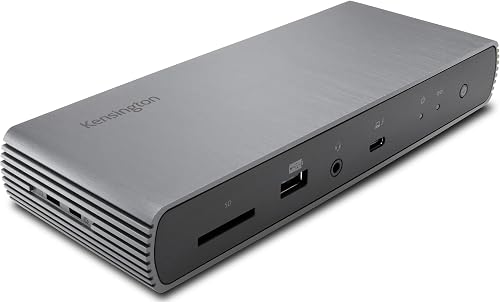
Kensington SD5700T Thunderbolt 4 Dual 4K Docking Station is a reasonable candidate to evaluate against the table above once you verify its exact port layout and power ratings.
Kensington SD5700T Thunderbolt 4 Dual 4K Docking Station
Another docking station option to weigh against the points above.
See the current price on Amazon.
View on AmazonOrder of Decisions and Common Questions
Working through your setup in this exact order keeps you from paying for unused bandwidth or picking a dock that cannot charge your machine:
- Inspect your laptop's host port: Confirm whether your USB-C port supports Thunderbolt 3/4 (40 Gbps), USB4, or USB-C with DisplayPort Alt Mode, or if it is a data-only port.
- Count your monitors, resolution, and refresh rate: Decide whether you need one 1080p screen at 60 Hz, dual 4K screens at 60 Hz, or a single 4K screen at 120 Hz or higher.
- Verify your operating system's display limits: Check whether you are using Windows, which supports MST, or macOS, which requires Thunderbolt or a software driver for two extended screens.
- Match the upstream power delivery wattage: Look up your laptop charger's wattage, such as 65 W or 90 W, and pick a dock whose dedicated host PD output equals or exceeds that number.
- Map out front vs. rear ports and cable reach: Put display, power, and 1 Gbps or 2.5 Gbps Ethernet cables on the back, keep SD card slots and audio jacks on the front, and verify the host cable reaches at least 2.6 feet (0.8 m).
Can I plug a Thunderbolt 4 dock into a standard USB-C laptop?
Many Thunderbolt 4 docks are backward compatible with USB-C laptops that support DisplayPort Alt Mode. Older Thunderbolt 3 docks based on early controller chips often work only with Thunderbolt ports. Plugging a Thunderbolt 4 dock into a standard 10 Gbps USB-C port drops its available bandwidth to match the laptop's slower port, which usually limits you to lower dual-monitor resolutions or refresh rates.
What happens if a dock's power delivery is higher than my laptop needs?
USB Power Delivery uses a digital handshake between the dock and the laptop so the computer only draws the amperage it is designed to handle, preventing any damage. Connecting a laptop that requires 65 W to a dock rated for 90 W or 100 W host charging is completely safe and gives the dock extra thermal headroom.
Why do both of my external monitors show the exact same screen on my MacBook?
Both screens mirror each other when a MacBook connects to a dock that uses DisplayPort Multi-Stream Transport (MST) to split one video lane into two HDMI or DisplayPort outputs. Because macOS does not support MST for independent desktops, it treats both outputs as a single mirrored display. Switching to a native Thunderbolt dock with two separate video streams or using a driver-based dock resolves the issue.
Does the cable between the laptop and the dock matter?
Passive USB-C cables sold strictly for phone charging often cap data speeds at 480 Mbps (USB 2.0) and carry no video signal at all. Use the certified 40 Gbps Thunderbolt cable or full-featured 10 Gbps USB-C cable included with the dock. Check that any replacement cable is explicitly rated for both video output and your target wattage, such as 100 W (5 amps at 20 volts).
Research-based. Based on manufacturer specifications and public information. Product details can change after the last-updated date. Prices are not shown here; check the retailer for the current price.