- Weigh the panel and cover together; magnetic folios often add 0.5 to 0.9 pounds (225 to 410 g).
- Check peak USB-C power draw in watts so a bright screen does not halve your unplugged laptop battery runtime.
- Prefer a continuous-hinge kickstand over a magnetic origami cover for tight airplane and train tray tables.
Why Bare Panel Weight Misleads Frequent Travelers
Shoppers looking for a travel monitor almost always sort specification sheets by weight first. Most aim for a bare display around 1.3 to 1.5 pounds (590 to 680 g). An exposed glass or matte plastic panel cannot go into a crowded backpack alongside a laptop charger, pens, and metal water bottles without screen protection. Clipping on the included magnetic origami folio or sliding the unit into a stiffened protective case pushes the total carry weight to 2.1 to 2.5 pounds (950 to 1,130 g), which rivals carrying a second ultrabook in your shoulder bag.
Cover materials and mounting mechanisms account for this hidden bulk. Many manufacturers ship a polyurethane cover lined with a full-surface magnetic sheet that clings to the back of the display chassis. Because the magnets must hold the screen upright when folded into a triangle, the cover alone often weighs 0.6 to 0.9 pounds (270 to 410 g). A monitor built with an integrated aluminum fold-out kickstand only needs a padded nylon or neoprene slip sleeve during transit. That sleeve typically adds just 0.25 to 0.35 pounds (115 to 160 g), so evaluating the complete carry package rather than the bare panel number keeps your bag under airline personal-item weight limits.
Check the spec sheet for both the panel-only weight and the weight with the included cover. If only one figure is listed, verify whether the stand is built into the chassis or part of a detachable magnetic folio.
LG Gram +view 16MR70
A monitor worth comparing against the criteria in this guide.

See the current price on Amazon.
View on AmazonHow Much Laptop Battery Does a Single-Cable Monitor Actually Drain?
Running a video signal and power over a single USB-C cable using DisplayPort Alt Mode and USB Power Delivery keeps extra power bricks out of your carry-on. Every watt the display uses still comes directly from your laptop battery when you work unplugged. A typical 14-inch (35.6 cm) or 15.6-inch (39.6 cm) IPS panel running at 50 percent brightness draws about 4.5 to 6 watts. Sitting next to a bright airport terminal window and pushing the backlight to 100 percent—typically 250 to 350 nits—raises power consumption to 8 to 12 watts. On a lightweight laptop with a 55-watt-hour battery that normally uses 10 watts for document editing and web browsing, an 8-watt secondary screen cuts unplugged runtime from roughly 5.5 hours to just over 3 hours.
Port output limits also explain why some screens flicker or reset when plugged into older or ultrathin laptops. A standard data-focused USB-C port without dedicated Power Delivery extensions may supply only 4.5 watts (5 volts at 0.9 amps) or 7.5 watts (5 volts at 1.5 amps). When a panel spikes to 10 watts during startup or on a full-white spreadsheet, the host port shuts down to protect its circuitry. The external screen then cycles on and off endlessly, though lowering the brightness in the monitor menu before unplugging from wall power prevents these sudden blackouts in transit.
At a hotel desk or lounge seat with an AC outlet, pass-through charging lets you plug your laptop's 65-watt or 100-watt USB-C wall adapter directly into the display. The monitor powers itself and forwards the remaining wattage to the laptop over a second cable. Because the monitor circuitry reserves 10 to 15 watts for its own operation and internal voltage conversion, a 65-watt wall brick may deliver only 50 watts to the host computer.

Pass-through charging powers both devices from one wall outlet but drops a few watts.
Before boarding a flight, connect the display while your laptop is still plugged into the wall. Drop the external screen brightness to 40 percent so its startup draw stays below 6 watts on battery power.
To check these power criteria against a specific model, look at ASUS ZenScreen MB16ACV and confirm its power consumption and port layout on the product page.
ASUS ZenScreen MB16ACV
One more monitor to check against the same criteria.

See the current price on Amazon.
View on AmazonWhich Stand and Case Designs Hold Steady on Moving Tray Tables?
A stand that stays steady on a deep conference room desk often fails on a shallow airplane tray table or a vibrating commuter train seat-back ledge. Most economy airline tray tables measure roughly 16 inches (40.6 cm) wide by 8 to 10 inches (20.3 to 25.4 cm) deep. Your laptop already occupies that width, leaving the second screen to sit angled tightly beside it in a shared booth or perched on a small cafe table where every bump transfers to the hinge.
Origami-style magnetic covers fold into a pyramid behind the panel, relying on friction between the bottom edge of the screen and a shallow groove in the cover flap. They offer only one or two fixed viewing angles—usually around 60 degrees and 75 degrees—and require 6 to 7 inches (15.2 to 17.8 cm) of front-to-back table depth. When a train lurches or the passenger ahead reclines, a magnetic flap can slip out of its groove and let the panel slide flat onto the table. Built-in L-shaped or U-shaped friction kickstands use torqued metal hinges that hold any angle between 15 degrees and 75 degrees while needing only 3.5 to 4.5 inches (8.9 to 11.4 cm) of table depth. Grip material on the bottom edge matters too: silicone rubber feet at least 0.08 inches (2 mm) thick dampen vibration and resist sliding on smooth molded plastic trays far better than bare anodized aluminum or slick faux leather.

Built-in hinge stands leave more room on shallow transit tray tables.
Two clear exceptions make a detachable folio or external tripod mount more practical than a built-in hinge. Travelers using a collapsible portable stand to lift the screen 5 to 7 inches (12.7 to 17.8 cm) above a laptop keyboard in a vertically stacked layout do not need an integrated bottom-heavy kickstand adding weight at the top. A bare panel with a rear 2.95-by-2.95-inch (75 by 75 mm) VESA mount or a flat back is much easier to clamp. Reading long legal contracts or code in portrait mode is the second case: many bottom-mounted L-hinges cannot balance a tall 14-inch (35.6 cm) panel vertically without tipping sideways, whereas a three-sided origami fold or a symmetrical U-frame kickstand supports both orientations.
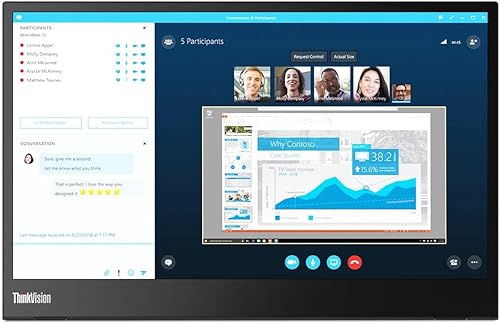
Lenovo ThinkVision M14 is a reasonable candidate to evaluate against these stand criteria, with full details on its hinge design, dimensions, and included accessories listed on the product page.
Lenovo ThinkVision M14
Another monitor option to weigh against the points above.
See the current price on Amazon.
View on AmazonHow Travel Configurations Compare Across Weight, Power, and Footprint
Choosing the right hardware means balancing shoulder weight against available table space and battery capacity at your seat. The numbers in the table below are examples of typical ranges across common 14-inch (35.6 cm) to 16-inch (40.6 cm) portable display configurations.
| Configuration Type | Total Carry Weight (Panel + Protection) | Typical USB-C Power Draw (50% to 100% Brightness) | Required Table Depth | Best Transit Scenario |
|---|---|---|---|---|
| Panel with magnetic origami folio | 1.9 to 2.5 lb (860 to 1,135 g) | 5 to 10 W | 6.0 to 7.0 in (15.2 to 17.8 cm) | Hotel desks and wide lounge tables |
| Built-in L-hinge stand + padded slip sleeve | 1.5 to 1.9 lb (680 to 860 g) | 4.5 to 8 W | 3.5 to 4.5 in (8.9 to 11.4 cm) | Shallow train trays and tight cafe tables |
| High-brightness panel + heavy kickstand case | 2.2 to 2.8 lb (1,000 to 1,270 g) | 8 to 14 W | 4.5 to 6.0 in (11.4 to 15.2 cm) | Bright sunlit spaces with AC wall power |
Pack a 3.3-foot (1 m) right-angle USB-C cable rated for 20 gigabits per second and 100 watts. Straight plugs stick out 1.5 inches (3.8 cm) from the side bezel and frequently bend against bag straps or adjacent walls in tight seating.
What Should You Verify Before Buying a Travel Monitor?
Before selecting a model, match the physical and electrical details of your laptop bag and computer ports against four measurements:
- Measure your backpack's laptop sleeve opening: A 15.6-inch (39.6 cm) portable display inside a protective sleeve usually measures about 14.5 by 9.5 inches (36.8 by 24.1 cm). Confirm that your bag's secondary pocket accepts that footprint without forcing the zippers against the corner bezels.
- Confirm host USB-C port capabilities: Look for a DisplayPort symbol or Thunderbolt icon next to your laptop's USB-C port. You can also check the computer manual to verify that the port supports DisplayPort Alt Mode and delivers at least 7.5 to 10 watts of outbound power.
- Calculate combined carry weight: Add the panel weight and the cover or sleeve weight together. Aim to keep the combined total under 2.0 pounds (907 g) if you walk through terminals with a shoulder bag.
- Inspect bottom-edge contact points: Check product photos for dedicated rubberized strips along both the bottom bezel and the kickstand base so the screen stays planted on slick laminate and plastic trays.
Matching the Screen to Your Actual Transit Routine
A secondary display only helps mobile work if it fits the cramped surfaces and limited battery reserves of actual travel days. Trips centered around hotel desks with reliable wall outlets allow for a slightly heavier 15.6-inch (39.6 cm) or 16-inch (40.6 cm) screen with pass-through charging and room for side-by-side windows. Hours spent working unplugged on trains, regional flights, or coffee shop tables call for a 14-inch (35.6 cm) panel with an integrated friction hinge and a lightweight slip sleeve. Keeping typical power draw around 5 watts ensures both your shoulders and your laptop battery last until your final stop.
Research-based. Based on manufacturer specifications and public information. Product details can change after the last-updated date. Prices are not shown here; check the retailer for the current price.