- Skip the number pad if you rarely enter spreadsheet data, pulling your mouse closer to reduce shoulder reach.
- Look for switches with a 1.1 to 1.6 oz (30 to 45 g) actuation force to help reduce finger strain over long workdays.
- Choose scissor switches or dampened linear switches to keep typing quiet in shared offices and on video calls.
- Check whether wireless models use a 2.4 GHz dongle or Bluetooth, and confirm how the battery charges.
Why a Full-Size Keyboard Is Not Always the Safest Default
Many shoppers assume a standard 100 percent keyboard with a dedicated right-side number pad is the most practical choice for a home or office desk. Having every key out of the box feels like a safe bet. Right-handed mouse users who spend their day writing emails, editing documents, or browsing the web rather than entering columns of numbers often run into an everyday workspace problem because of that extra block of keys.
A typical full-size keyboard measures about 17.5 inches (44.5 cm) wide. Centering the main letter keys in front of your chest pushes the right edge of the frame far out to the side. You then have to angle your right arm outward every time you reach for the mouse. Dropping down to a tenkeyless (80 percent) or compact 75 percent layout trims the frame width to roughly 12.5 to 14 inches (32 to 35.5 cm). Removing those 3.5 inches (9 cm) lets the mouse sit closer to your body and can help reduce shoulder and wrist strain during an eight-hour shift.

Removing the number pad brings your mouse roughly 3.5 inches (9 cm) closer.
Daily software habits should dictate the footprint you pick. Accountants, financial analysts, and spreadsheet-heavy workers who punch in hundreds of multi-digit figures an hour benefit from a full-size layout, or they can pair a compact board with a separate left-side number pad. Most other desk workers gain more comfort by dropping the unused keys, and Logitech MX Keys S is one option that fits these criteria if you check the layout and dimensions on the product page against your desk space.
Logitech MX Keys S
A keyboard worth comparing against the criteria in this guide.
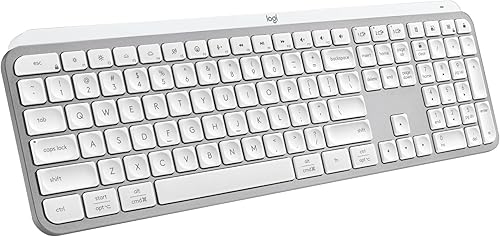
See the current price on Amazon.
View on AmazonHow Much Force and Travel Do Your Fingers Actually Need?
After you settle on a physical footprint, look at what happens underneath each keycap. Every switch needs a specific downward weight to register a press, called actuation force. Each key also moves a set vertical distance before hitting the base plate, known as total travel. Typing for six or seven hours on stiff switches takes thousands of tiny, repeated exertions. Slamming your fingertips into a rigid metal or plastic plate at the bottom of every stroke adds unnecessary impact.
During extended typing sessions, switches with a light actuation force of roughly 1.1 to 1.6 ounces (30 to 45 grams) can help reduce finger fatigue compared to heavier springs requiring 2.1 ounces (60 grams) or more. How the key reaches the bottom matters just as much, since standard mechanical switches travel about 0.16 inches (4 mm) in total and register the keystroke halfway down at about 0.08 inches (2 mm). Many typists naturally press keys all the way to the floor, a habit called bottoming out. Boards with cushioned mounts, silicone sound-dampening pads, or low-profile switches that travel only 0.06 to 0.10 inches (1.5 to 2.5 mm) soften that repetitive landing.
Sore fingertips after long writing sessions often come from heavy impacts, so try releasing each key right after the 0.08-inch (2 mm) actuation point or look for switches with built-in silicone stem dampeners.
To see how these criteria apply to an actual model, take a look at Keychron K2 Version 2 and check the switch options and travel specifications on the product page before deciding.
Keychron K2 Version 2
One more keyboard to check against the same criteria.

See the current price on Amazon.
View on AmazonWhat Changes When You Share a Quiet Office or Ditch the Cable?
Switch feel does not happen in a vacuum. Keyboard noise and computer connection types often matter more than pure typing preference. In an open-plan office, a quiet library, or a home workspace with unmuted video calls, traditional clicky switches and standard unmuffled tactile switches produce sharp, high-pitched clacks. Those sounds carry across a room and bleed into microphones. In shared rooms, laptop-style scissor switches (often called pantograph mechanisms) or silent linear mechanical switches with tiny internal rubber dampeners keep noise down to a soft thud around 35 to 45 decibels (dB). Louder mechanical boards reach 55 to 65 dB.
Connectivity brings a second set of trade-offs between desk tidiness and upkeep. Wireless keyboards clear away cable clutter and let you push the board aside in seconds to make room for a paper notebook, though different wireless signals behave in distinct ways:
- Bluetooth connections switch easily among up to three devices—like a laptop, tablet, and phone—without using a USB port. They typically run at a 125 Hz polling rate (an 8-millisecond interval), which can feel slightly sluggish during fast tasks or gaming, and waking from sleep takes a second or two.
- 2.4 GHz USB receiver connections use a dedicated plug-in dongle for a steadier link. These often run at 1,000 Hz (a 1-millisecond interval), matching a standard wired cord while keeping cables off the desk.
- Power and charging methods vary between rechargeable and disposable cells. Rechargeable lithium-ion models with a USB-C port let you keep typing while plugged in if the battery dies mid-afternoon. Boards that take replaceable AAA or AA batteries last for months at a time, provided you keep spare cells in a desk drawer.
Before picking a wireless model, verify whether its USB-C port carries data along with power, since some wireless boards only charge through the cable and still need Bluetooth or a dongle to type.
Comparing Keyboard Layouts, Switch Styles, and Connections
Keyboard specifications combine outer shell dimensions with internal switch mechanics. Putting the numbers side by side clarifies which trade-offs matter for your setup, and the figures in the table below serve as examples of typical ranges across standard consumer and office keyboards.
| Category | Common Option | Typical Measurement / Spec (Example Range) | Best Match by Daily Use |
|---|---|---|---|
| Layout Size | Full-Size (100%) | 17 to 18 in (43 to 46 cm) wide; 104 to 108 keys | Frequent accounting, data entry, and heavy spreadsheet work |
| Layout Size | Tenkeyless / Compact (75%–80%) | 12.5 to 14.5 in (32 to 37 cm) wide; 80 to 87 keys | General writing, coding, and closer right-hand mouse placement |
| Switch Mechanism | Scissor (Pantograph) | 0.06 to 0.08 in (1.5 to 2 mm) total travel; 1.8 to 2.1 oz (50 to 60 g) force | Quiet offices, laptop-style muscle memory, slim travel bags |
| Switch Mechanism | Light Linear / Silent Linear | 0.14 to 0.16 in (3.5 to 4 mm) travel; 1.1 to 1.6 oz (30 to 45 g) force | Long typing sessions, reduced bottom-out noise, shared spaces |
| Switch Mechanism | Tactile Mechanical | 0.14 to 0.16 in (3.5 to 4 mm) travel; 1.6 to 2.1 oz (45 to 60 g) force | Typists who want a noticeable physical bump to reduce typos |
| Connection Type | Bluetooth Wireless | 125 Hz polling rate (8 ms); multi-device pairing | Clean desks, switching between a work laptop and a tablet |
| Connection Type | 2.4 GHz Wireless / Wired USB | 1,000 Hz polling rate (1 ms); single-plug connection | Desktop setups needing instant wake times and zero signal drop |
The Redragon K552 KUMARA is a reasonable candidate to compare against the points above, so look over the product page to verify its exact layout, switch type, and connection specs.
Redragon K552 KUMARA
Another keyboard option to weigh against the points above.

See the current price on Amazon.
View on AmazonWhat Should You Measure Before Picking a Model?
Before browsing dozens of product pages, spend five minutes checking your current workspace and habits with this four-step checklist:
- Measure your usable desk width with a tape measure across the flat area where your keyboard and mouse sit. Workspaces with less than 22 inches (56 cm) of total width for both devices need a tenkeyless or 75 percent frame under 14.5 inches (37 cm), leaving the mouse 7 to 8 inches (18 to 20 cm) of sweeping room.
- Track your number-entry habits for one workday to see whether you use the right-side number pad for rapid calculations or just type occasional digits on the top row. Leaving out an untouched number pad helps improve shoulder alignment.
- Check your room acoustics by noting who sits within 10 feet (3 m) of your desk and how often your microphone is live. Where background clatter causes trouble, narrow your search right away to scissor switches or mechanical switches labeled as silent or dampened.
- Count your open USB-A or USB-C ports for a wired cable or 2.4 GHz receiver. Decide whether you prefer plugging in a charging cord every few weeks or swapping AA or AAA batteries once or twice a year.
Check the underside of the keyboard housing as well, because flip-out feet that set the typing angle between 3 and 6 degrees keep your wrists straighter than steep frames fixed at 10 degrees or more.
Matching the Specs to Your Desk
Picking a keyboard comes down to matching physical dimensions and switch mechanics to your daily work routine. Aligning frame width with your mouse reach, keeping actuation force between 1.1 and 1.6 ounces (30 and 45 g), and choosing a switch and connection method that fit your room's noise limits lets you narrow down any specification sheet in minutes.
Research-based. Based on manufacturer specifications and public information. Product details can change after the last-updated date. Prices are not shown here; check the retailer for the current price.