- At 27 inches, resolution sets sharpness: 1080p is about 82 pixels per inch, 1440p about 109 and 4K about 163.
- For office work, panel type and the stand matter more than a high refresh rate.
- Place the screen about an arm's length away with the top edge at or just below eye level.
What a 27-inch monitor changes, and what it does not
The size of a monitor sets how large things look. Resolution sets how sharp they are. At 27 inches the two interact in a way that is easy to measure: a screen with 1920 by 1080 pixels packs about 82 pixels into every inch, a 2560 by 1440 screen packs about 109, and a 3840 by 2160 screen about 163. Text on the first is visibly built from pixels at normal desk distance, text on the second is clean for most people, and text on the third looks printed.
That is the reason 27 inches is a popular office size, and also the reason to be careful. If you plan to spend the day in documents and spreadsheets, a monitor with more pixels at this size usually reads better. If you mostly browse and watch video, a lower resolution can be perfectly fine and leaves more of your budget for the stand and the panel.

Screen about an arm's length away, top edge at or just below eye level (example layout).
Panel type, refresh rate and the specs that matter less
Panel type affects what you see. IPS panels hold their color and brightness when you look at them from the side, which is helpful if you share the screen or sit off-center. VA panels usually show deeper blacks and higher contrast, but colors can shift at an angle. For office work an IPS panel is the safe choice, and VA is worth considering if you mostly work in a dim room.
Refresh rate is the number that gets the most marketing, and it matters least at a desk. A standard rate is enough for documents. A higher rate makes scrolling and cursor movement look smoother, so it is a nice extra if it does not raise the cost of the monitor you want, but it should not outweigh panel type or the stand. Response time, curved screens and HDR labels are mostly aimed at games and video, so they can sit at the bottom of your list.
Choose the panel and the stand for an eight-hour working day first, and treat the gaming numbers as a bonus.
Ports and the stand: the parts you use every day
A monitor can look perfect and still frustrate you if it cannot connect to your computer or move to the right height. Start with the ports. Check that it has the input your computer uses, whether that is HDMI, DisplayPort or USB-C, and look at the cable that comes in the box. A USB-C input that also charges a laptop can replace a cable and a charger on a small desk, but only if the listing says it supplies power.
Then look at the stand. A stand that only tilts leaves you matching your chair to the monitor. One that adjusts for height lets you set the top edge at the right level without books under the base. If the stand is fixed, check whether the monitor accepts a standard VESA mount, which lets you add an arm later and free up the desk space.
| Check | Why it matters | What to look for |
|---|---|---|
| Resolution at 27 inches | Sets text sharpness | More pixels for text-heavy work |
| Panel type | Color and viewing angle | IPS for general office use |
| Inputs | Connecting your computer | The port your computer uses, and the cable included |
| Stand adjustment | Eye-level placement | Height adjustment, or a standard VESA mount |
| Refresh rate | Smoother scrolling | A nice extra, not a deciding factor |
The table describes the checks in general terms, not any specific monitor.
Set the monitor up so it is comfortable
Where the monitor sits matters as much as which one you buy. Put the screen about an arm's length from your eyes, which for most people is roughly 20 to 30 inches (50 to 76 cm), and set it so the top edge is at or just below eye level. If you wear glasses with a separate reading zone, you may want it slightly lower. Tilt it back a few degrees and place it directly in front of you, not off to one side.
Then use brightness and room light together. A bright screen in a dark room is tiring to look at, and so is a dim screen in a bright room. Match the screen's brightness to the room, and if the monitor has a low-blue-light mode, try it and keep whatever setting feels better to you.
Monitors to compare
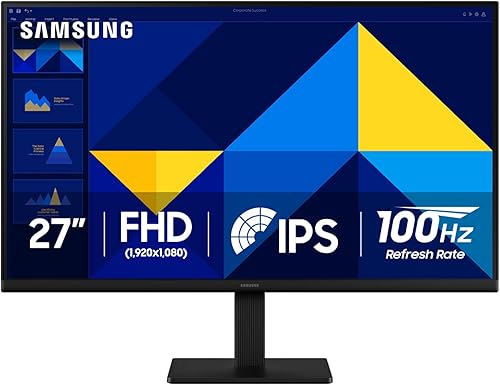
These three 27-inch monitors make a reasonable set to check against the checks above. One candidate is the Samsung 27-inch S30GD Essential monitor. Check the stand adjustment and the available ports on its page.
Samsung 27-inch S30GD Essential monitor
A 27-inch office monitor to compare on resolution, panel type, ports and stand adjustment.
- Size
- 27 inch (per listing title)
Worth checkingCheck the stand adjustment and the available ports on the listing.
See the current price on Amazon.
View on AmazonA second candidate is the LG 27U411A-B 27-inch monitor. Confirm the panel type and the stand on the listing before you decide.
LG 27U411A-B 27-inch monitor
A second 27-inch monitor to check against the same resolution, panel and stand checks.
- Size
- 27 inch (per listing title)
Worth checkingConfirm the panel type and the stand adjustment on the product page.

See the current price on Amazon.
View on AmazonThe Philips 27-inch computer monitor is a third candidate. Check which video inputs it has and whether the stand moves.
Philips 27-inch computer monitor
A third 27-inch monitor to compare against the criteria in this guide.
- Size
- 27 inch (per listing title)
Worth checkingCheck which video inputs it has before you decide.

See the current price on Amazon.
View on AmazonCommon questions
Is 4K worth it at 27 inches?
It is sharper, and text benefits the most. It also asks more of your computer and usually costs more, and some operating systems scale the interface so that things look about the same size as on a lower resolution. If your work is mostly text and spreadsheets, it is worth a look. If you mostly browse, you may not notice the difference.
Can I use two 27-inch monitors?
Yes, if your desk is wide enough. Measure the width of both screens plus the stands. A matched pair with thin edges looks cleaner, and a dual monitor arm can free up desk space.
Do I need an adjustable stand?
If the stand does not adjust for height, you can raise the monitor with a riser or a VESA arm. Without one of those, you end up matching your chair and posture to the screen, which is the wrong way around.
Research-based. Based on manufacturer specifications and public information. Product details can change after the last-checked date. Prices are not shown here; check the retailer for the current price.